
Turn any image into an animated 9:16 video with AI in 4 steps
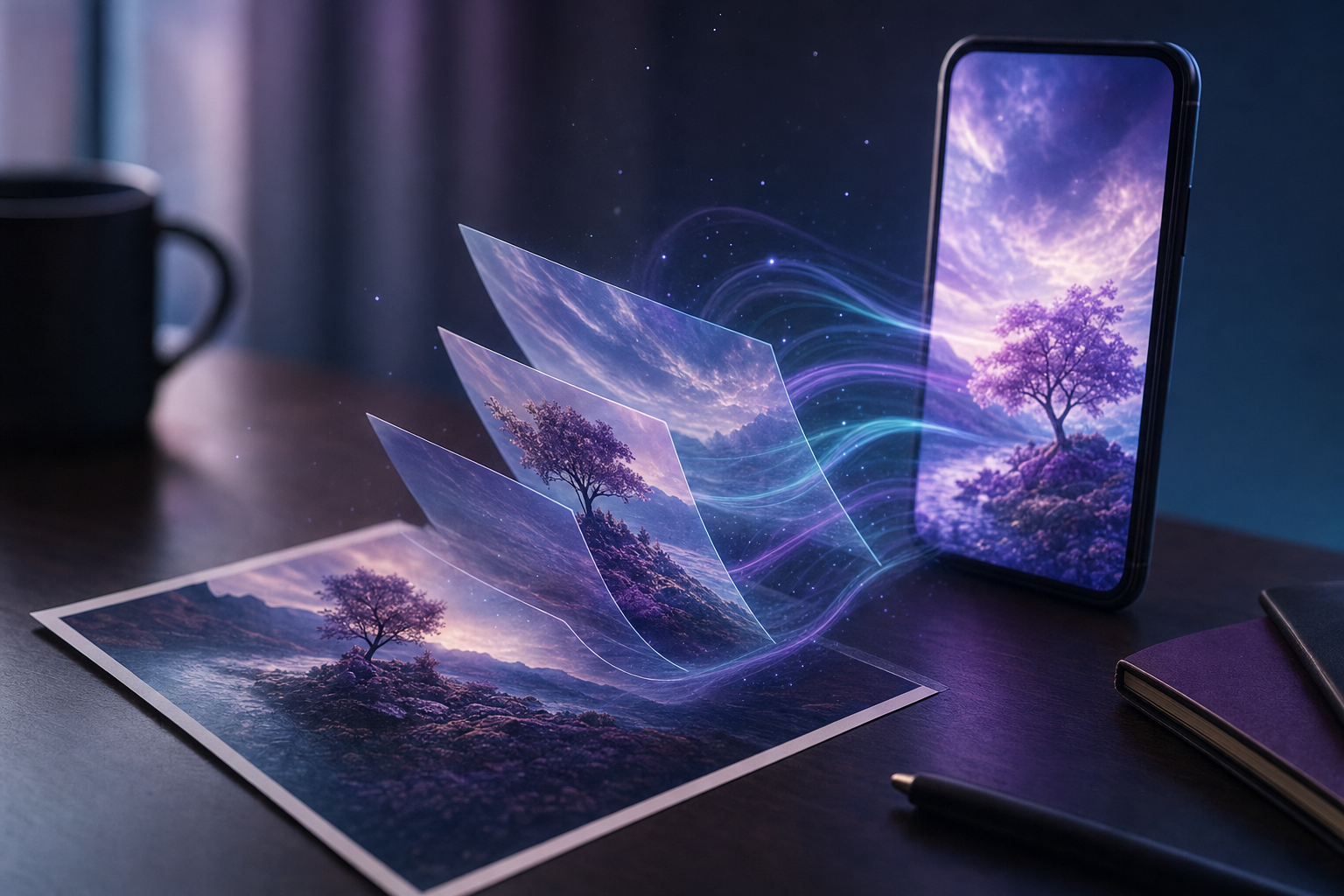
You can now give a chat AI a still image and get back a looping vertical animation: layers drifting at different depths, text typing itself in, charts growing, light sweeping across a product.
The secret is one change of wording. Don't ask it to "animate this picture"; you'll get a lazy zoom. Ask it to deconstruct the image into independently animated layers and rebuild it as an animated scene. This four-step series is built around that idea. Start at step 1, or read the whole method first.
What you need
A chat model that can read images and preview code. Claude with artifacts works best; ChatGPT's canvas works too. The AI writes the animation as HTML and canvas code, not as a video file, so step 4 shows you how to turn it into an MP4.
It works on photos, product shots, logos, infographics, posters, illustrations and even screenshots of your website or app.
Step 1: Break the image into layers
Step 1 stops the AI from rushing into code. You upload the image, say where the video's going and what mustn't change (faces, product shape, logo proportions, exact text), and it lists every layer from back to front with colours, position and a natural motion for each.
It also transcribes all the text, suggests atmosphere and camera moves, flags the parts that will look fake if moved, and ends with a three-beat storyboard for a seamless loop.
Example: a café photo splits into the street outside, the counter, the barista, a steaming cup in the foreground and the sign on the window. The barista is marked "keep stable"; the steam and the light through the window do the moving.
Step 2: Rebuild it as an animated scene
Step 2 turns that plan into one self-contained HTML file on a 1080 x 1920 canvas (9:16). You pick a recipe:
- Photo parallax: 2.5D depth from separated layers, with faces kept undistorted.
- Infographic explainer: elements appear in reading order, arrows draw themselves and charts grow to their true values, with every word and number kept exact.
- Logo intro: pieces assemble and settle exactly into the original logo.
- Product advert: a slow push-in with moving highlights, while the product stays accurate.
- Website or app screenshot: buttons pulse, a cursor clicks and numbers count up.
The prompt also asks for time-based motion with easing, social-media safe areas, a matching first and last frame, Play, Pause, Restart and speed controls, and the key settings as named constants you can tweak.
Step 3: Refine until it feels like video
Step 3 is where it gets good. Watch the preview twice, tick what you noticed (too fast, sliding subject, a jump at the loop point, text too small), and the AI reviews its own work against a checklist first: easing, layered speeds, natural movement, a perfect loop, readability, a hook in the first second, performance and faithfulness to the original.
It returns the full updated file with a one-line note for every change, and if two of your requests conflict it picks the better one and explains why.
Step 4: Export an MP4 for Reels and TikTok
Step 4 adds an Export button that restarts the scene and records it straight from the canvas at full resolution, leaving the controls out, with a progress indicator. If the chat preview blocks downloads, it tells you how to open the file in your browser instead.
You also get a one-line ffmpeg command to convert WebM to a universally accepted MP4, a no-code alternative, a screen-recording fallback, a pre-posting checklist and caption ideas.
The four steps at a glance
- Break the image into layers
- Rebuild it as an animated scene
- Refine the motion, timing and loop
- Export it as an MP4
Try it now
Pick one image you already own, such as a product photo, your logo or last month's infographic, and run step 1. Most people have a usable loop within three or four rounds of step 3.