You Asked for Golden Hour. The Face in the Edit Was Wrong.
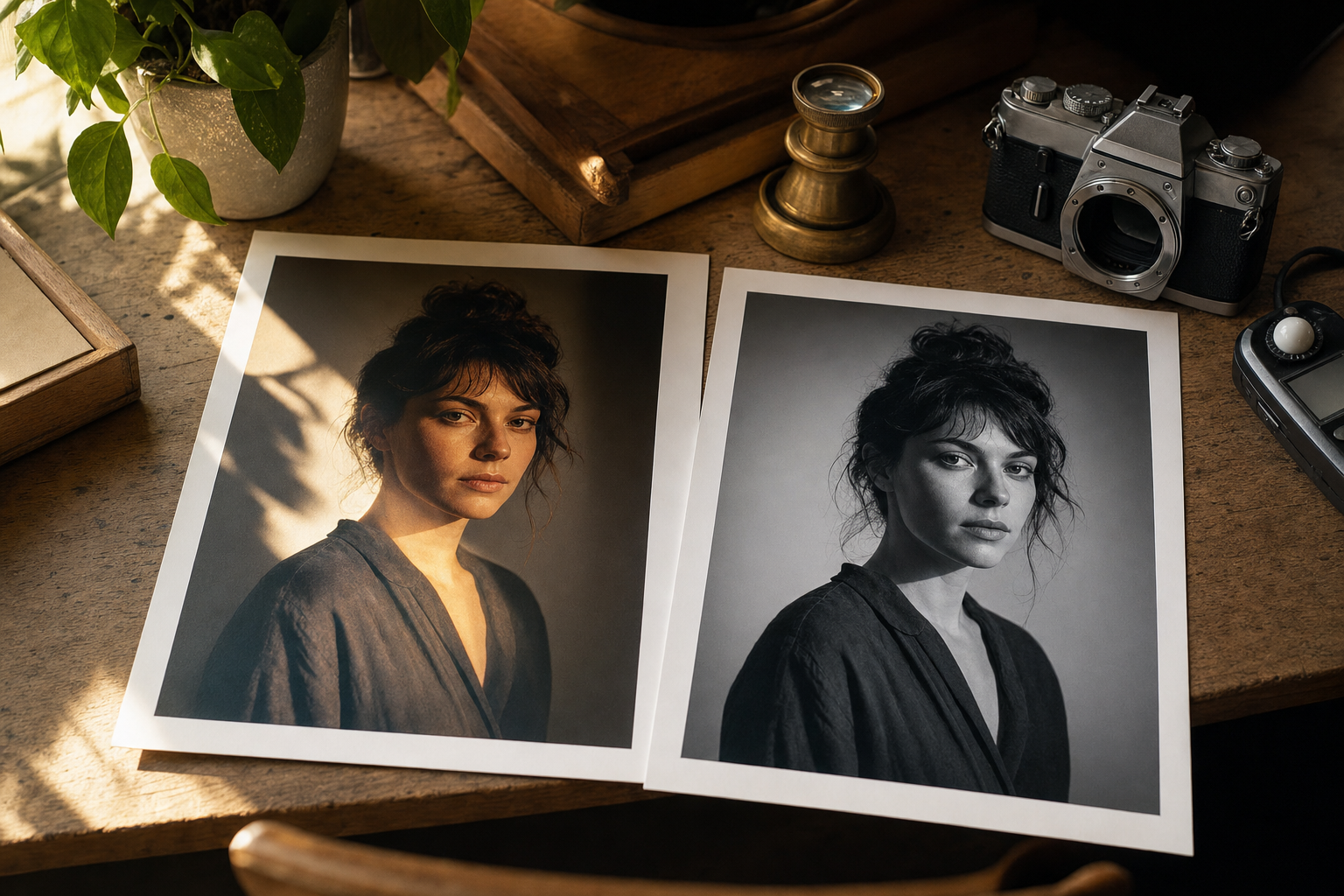
You attach a clear photo of yourself, ask for golden hour light, and the result looks polished. Then you look again. The jaw is slightly different. The eyes are not quite yours. The model kept the vibe and rebuilt the person.
That is the usual failure of an AI photo edit. The tools are good at a new background, a new jacket or a new grade. They are less careful with the face unless you tell them, first and plainly, to leave it alone.
These prompts start by locking the face from your reference photo, then change one thing: the light, the clothes, the setting, the grade, or the people standing next to you. Paste the prompt into a tool that accepts the photo, fill the brackets, and compare the result with the original at 100%.
Which app should you use?
Use a tool that takes your photo as an input, rather than one that only reads a text description of you.
- ChatGPT with GPT Image: attach the photo, paste the full prompt, and fill the placeholders. This is the straightforward path for a full lighting or wardrobe change.
- Gemini, including the Nano Banana image model: the same method, photo plus prompt in the same turn.
- Photoshop Generative Fill: strongest when the change is local. Select the background, or the people you want gone, paste the relevant instruction, and leave the faces outside the selection. A full golden hour restyle is usually easier in ChatGPT or Gemini.
Text-only image generators are a weaker starting point. If the app cannot see the original photo, it is guessing your face from words.
A worked example
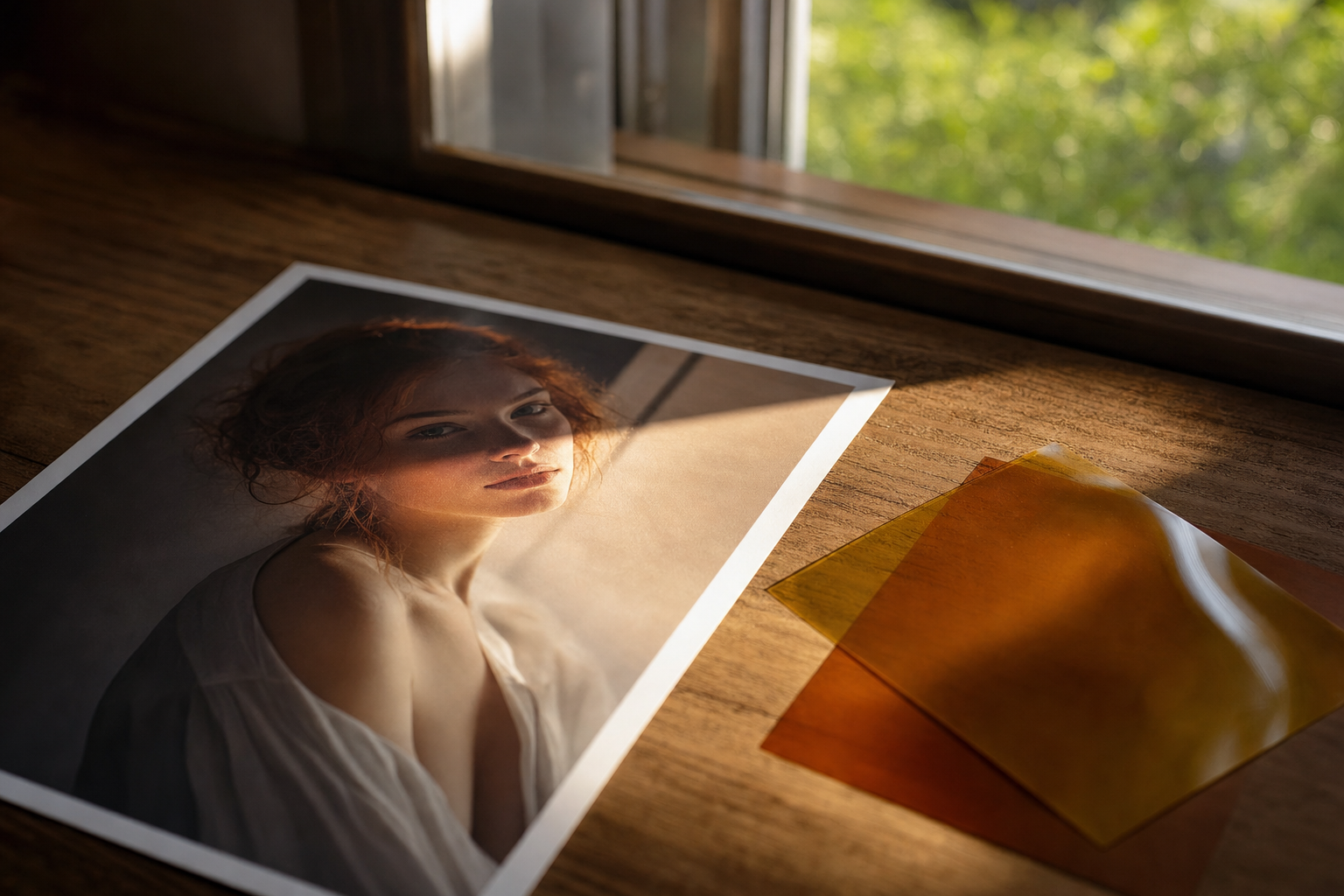
You have an indoor phone portrait, slightly flat light, a messy shelf behind you. You want it to look like late sun in a garden.
Open ChatGPT or Gemini, attach the photo, and run the golden hour portrait prompt. Set [CROP] to head and shoulders, [SETTING] to a garden path at sunset, and leave [WARDROBE] as the clothes you already have on.
A good result keeps your eyes, nose, mouth, hairline and expression, including moles and freckles, and only changes the light and the background. If the jaw has moved, discard it and run it again. Check the result yourself as well.
The other looks
The same face lock sits in front of six other edits.
- The Rembrandt-style black and white editorial prompt uses studio lighting with a triangle of light on the shadow-side cheek, a deep black backdrop and fine grain. That is a different job from our existing classic film-noir portrait prompt, a 1940s Hollywood look with venetian-blind shadows and alley atmosphere.
- The dusk urban streetwear prompt puts you on a city side street at dusk, in a dark bomber, with soft neon in the background.
- The bright cafe background swap prompt keeps the person, including the upper body and head angle, and places them in a clean cafe with warm window light.
- The 1990s Kodak Portra 400 film look prompt adds warm highlights, gentle grain and a modest flash if you want it, with no beautification.
- The natural magazine retouch prompt evens out harsh light, tidies flyaway hairs and clutter, and keeps every pore and mole. The skin should still look like skin.
- For a studio corporate look, use the existing high-quality corporate headshot prompt. It already asks for likeness from a reference photo and a LinkedIn-safe crop.
Taking people out of a family photo
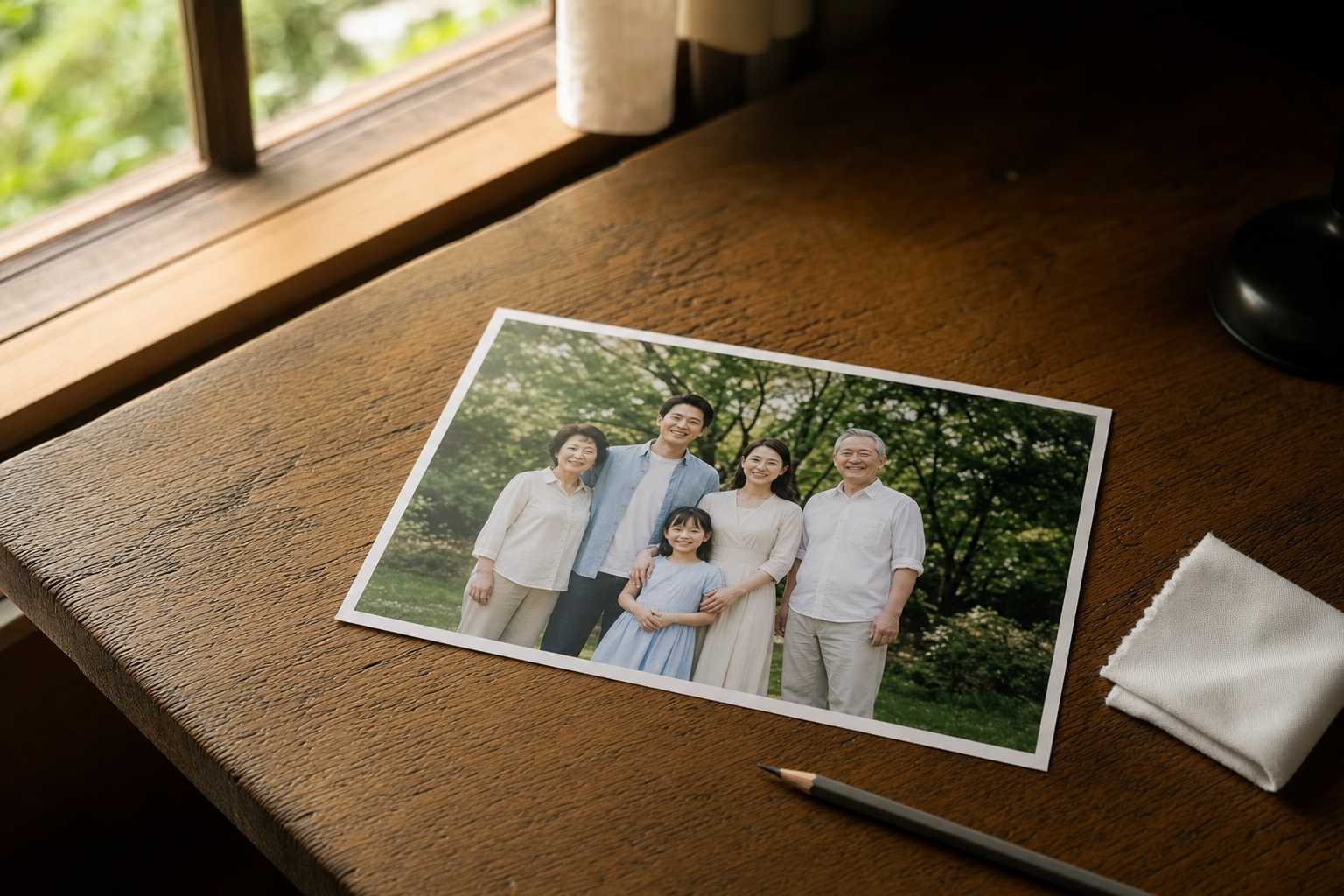
The request that kept coming up with these looks was a practical one: take one or two people out of a group picture and leave everyone else alone.
The group photo prompt is built for that. You describe who to take out ("the adult on the far left"), and it keeps every remaining face, pose and place in the frame. The gap is filled with the original wall, garden or furniture, at the same grain and colour.
In Photoshop, select only the people you want gone and run Generative Fill with that instruction. In ChatGPT or Gemini, attach the full photo and use the complete prompt.
How to run any of them
- Open ChatGPT, Gemini or Photoshop, and start with a mode that accepts a reference photo.
- Attach the original, paste the prompt, and fill the brackets. Leave a bracket blank only if you are happy for the model to pick a default.
- Compare the result with the original at 100%. Check the eyes, the nose, the mouth, the hairline, and any mole or set of glasses. If those have moved, do not keep the edit.
A version of these looks circulated on social media as a set of face-preserving edit prompts. I rewrote them for Prompt King, added the family-photo request, and set out which tools actually keep a face.